
Windows 10 Installation and Activation: A Complete Step-by-Step Guide
Need to get Windows 10 installed and activated on your computer? This guide covers the full process from downloading the official installation files to activating your copy with a valid product key. Everything is explained in clear, easy-to-follow steps.
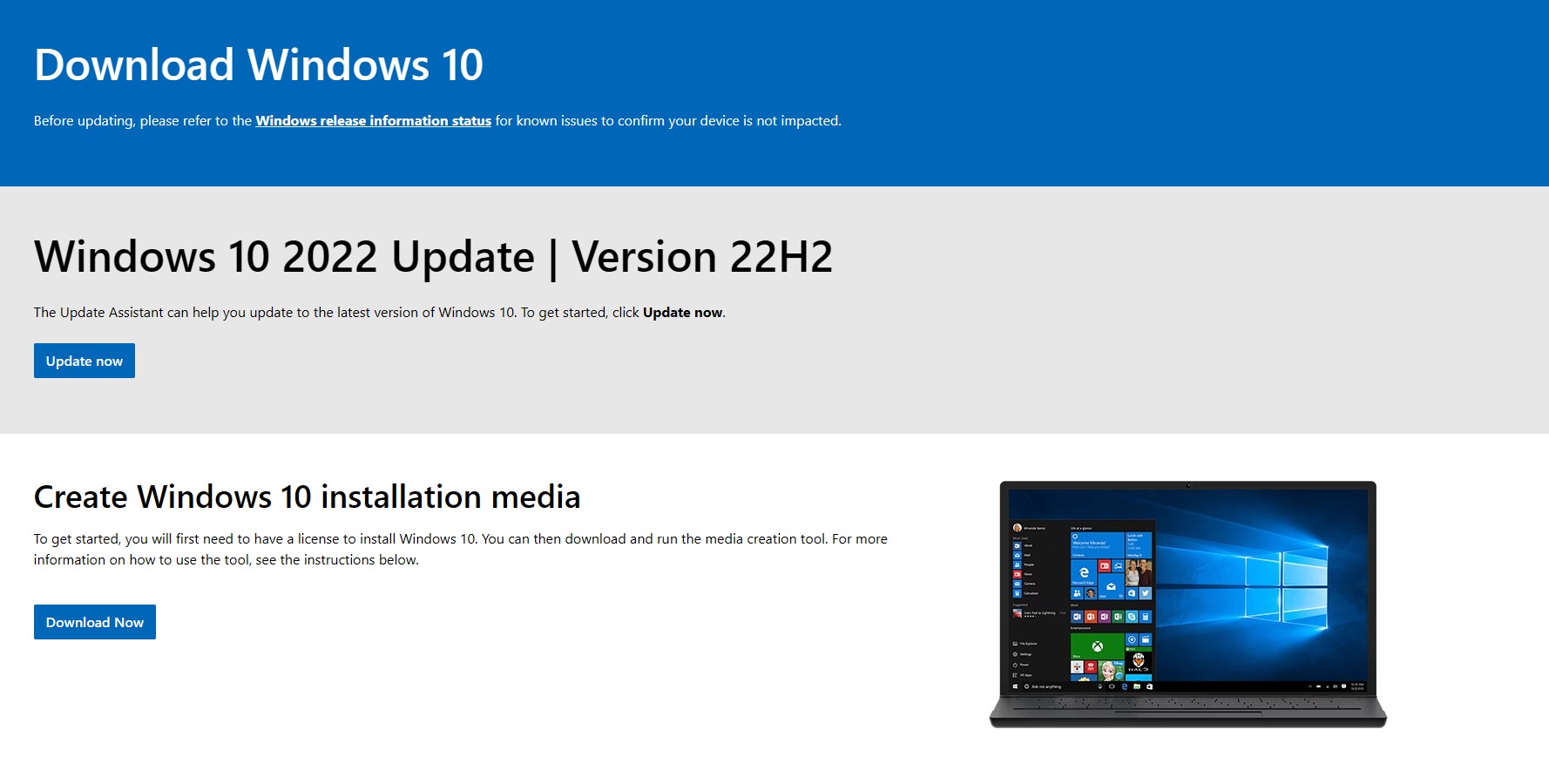
Step 1 — Downloading Windows 10
- Open your browser and navigate to https://www.microsoft.com/en-us/software-download/windows10
- Select “Download Now” to save the Windows 10 setup file directly to your computer
- Once downloaded, run the setup file to begin the installation process
Step 2 — Installing Windows 10
- The Windows 10 Setup Wizard will launch automatically after you run the file
- Follow the on-screen prompts to complete the installation — accept the license terms when asked
- Choose your preferred edition (Home or Pro) and wait for the installation to finish
- Restart your computer when prompted to complete the setup
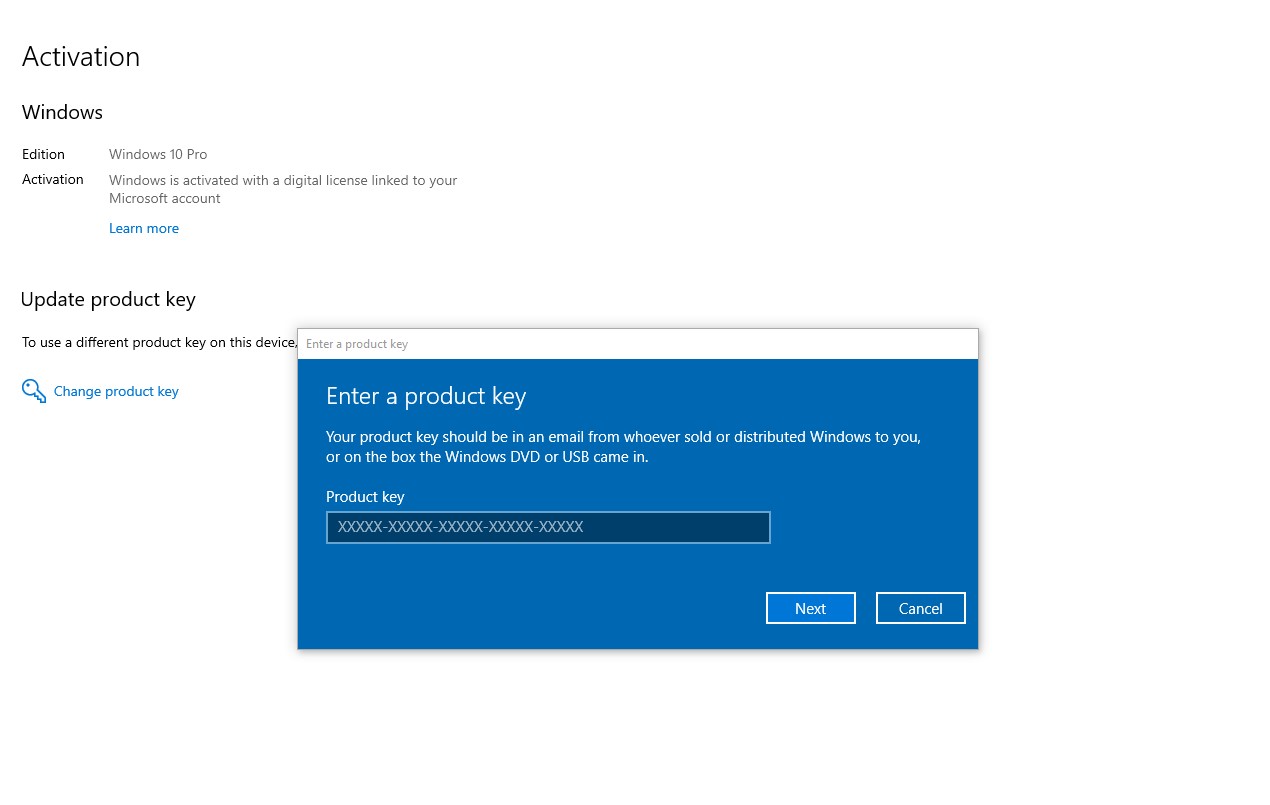
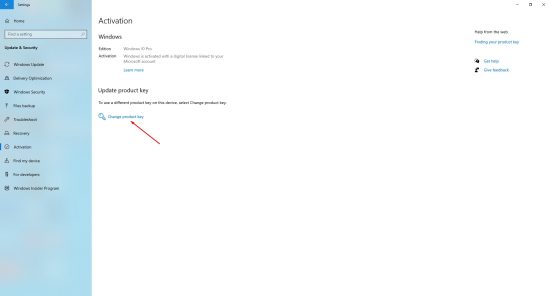
Step 3 — Activating Windows 10
- After Windows 10 loads, go to Start Menu → Settings → Update & Security → Activation
- Click on Change product key and enter your valid 25-character Windows 10 product key
- Press Next and wait for the activation confirmation to appear