
Windows 11 Installation and Activation: A Complete Step-by-Step Walkthrough
Looking to install and activate Windows 11 on your computer? You’ve come to the right place. This guide walks you through every stage of the process, from downloading the official files straight from Microsoft to successfully activating your copy with a valid product key. Everything is explained in clear, easy-to-follow steps.
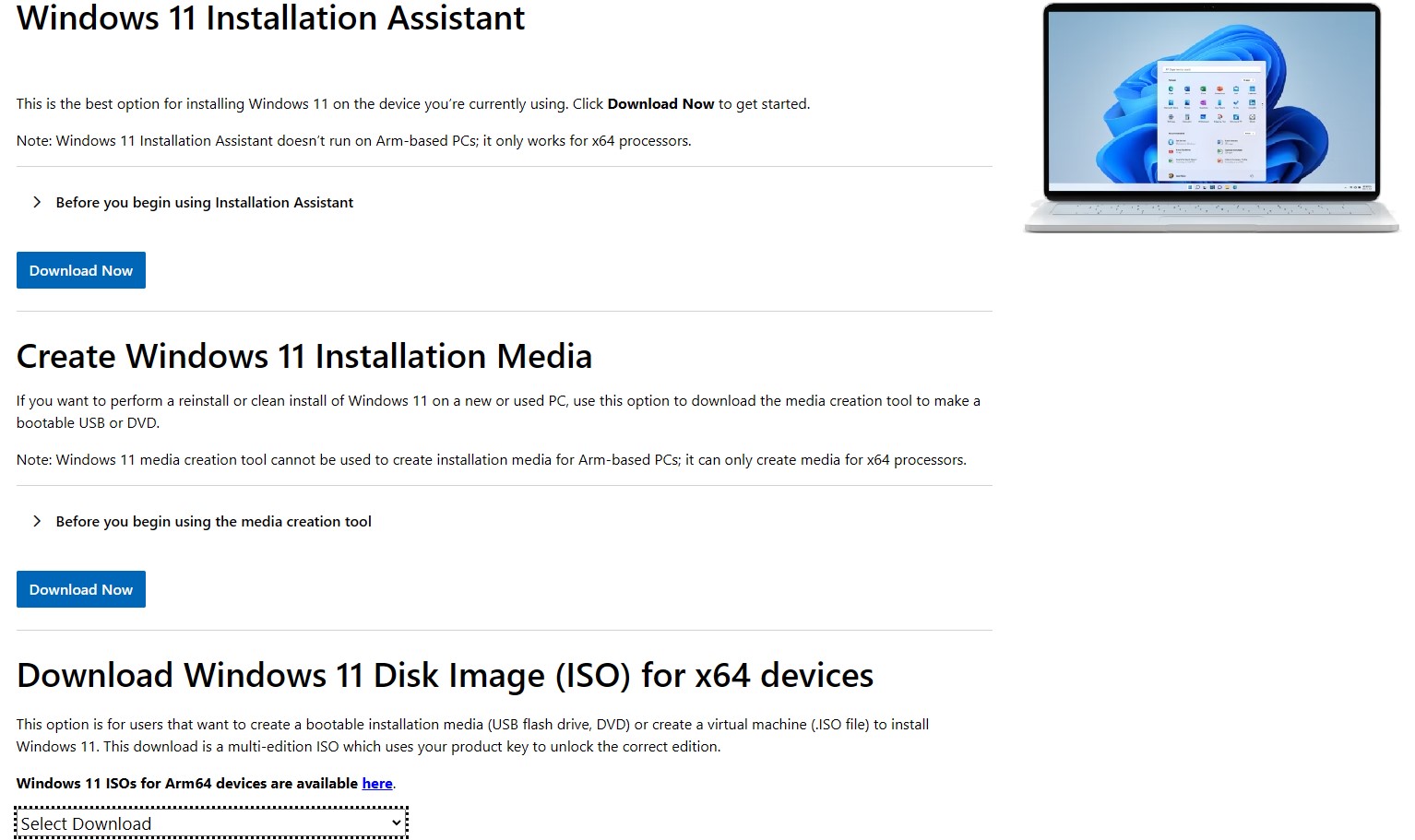
Step 1: Downloading and Installing Windows 11
First things first — you’ll need to grab the official Windows 11 installation files directly from Microsoft. Here’s how to get everything set up:
- Open your browser and navigate to https://www.microsoft.com/en-us/software-download/windows11
- Once there, choose how you want to proceed — either select “Upgrade Now” for an in-place upgrade or “Create Installation Media” if you prefer a clean setup using a USB drive or DVD
- Follow the on-screen prompts to complete the download and launch the installation wizard
Tip: The “Create Installation Media” option is ideal if you’re setting up Windows 11 on multiple machines or performing a fresh install from scratch.
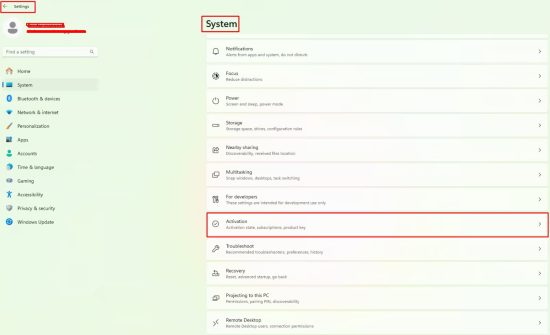
Step 2: Finding the Activation Settings
Once Windows 11 is installed on your machine, the next step is to locate the activation area within Windows. This is where you’ll manage your product license:
Head to Start Menu → Settings → System → Activation. That’s the path you need to follow inside Windows 11 to reach the right screen. Think of it as navigating through your PC’s control center.
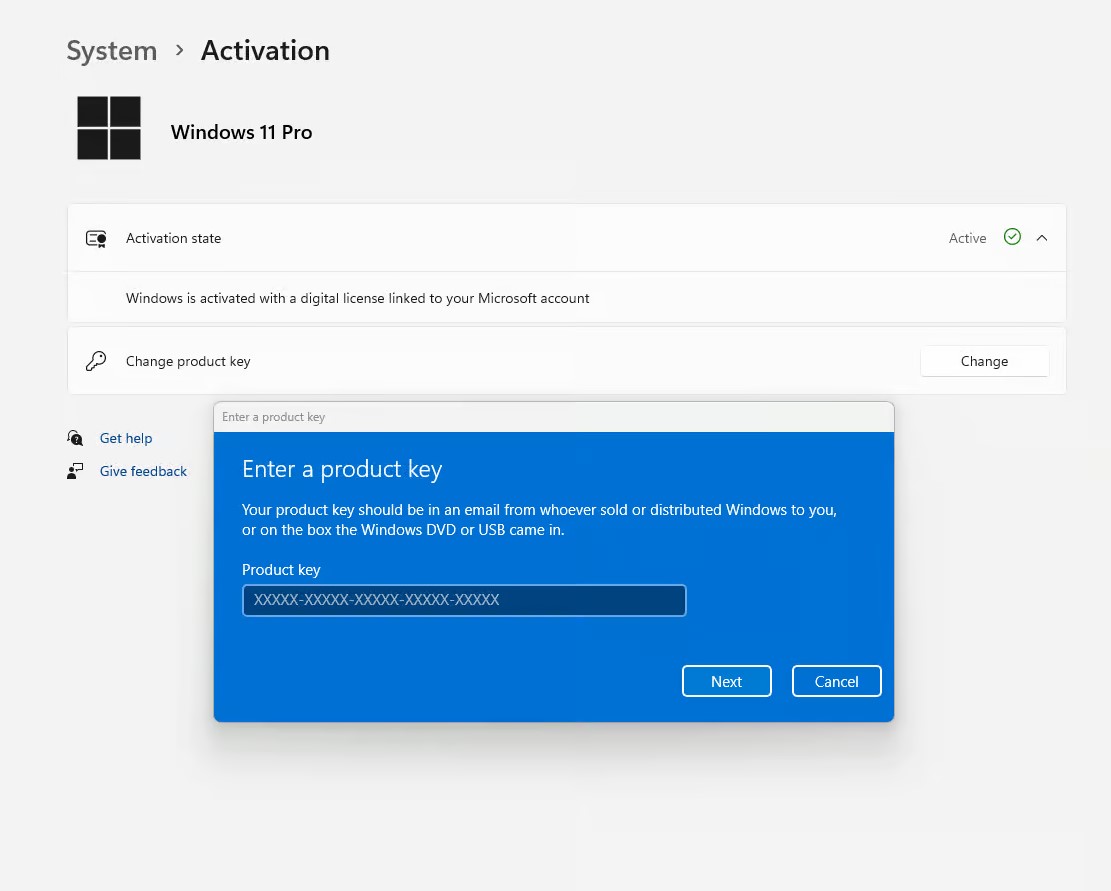
Step 3: Activating Your Copy of Windows 11
With the activation screen open, you’re ready to input your product key and finalize everything. Just follow these quick steps:
- Select the option labeled “Change product key”
- Type in your 25-character Windows 11 product key — make sure each group of five characters is entered correctly (XXXXX-XXXXX-XXXXX-XXXXX-XXXXX)
- Press “Next” and wait a few seconds while Windows communicates with Microsoft’s activation servers
Once the validation is complete, you’ll see a confirmation message confirming that your Windows 11 Pro is now activated and ready to use.